Customizing Content
4-5 min
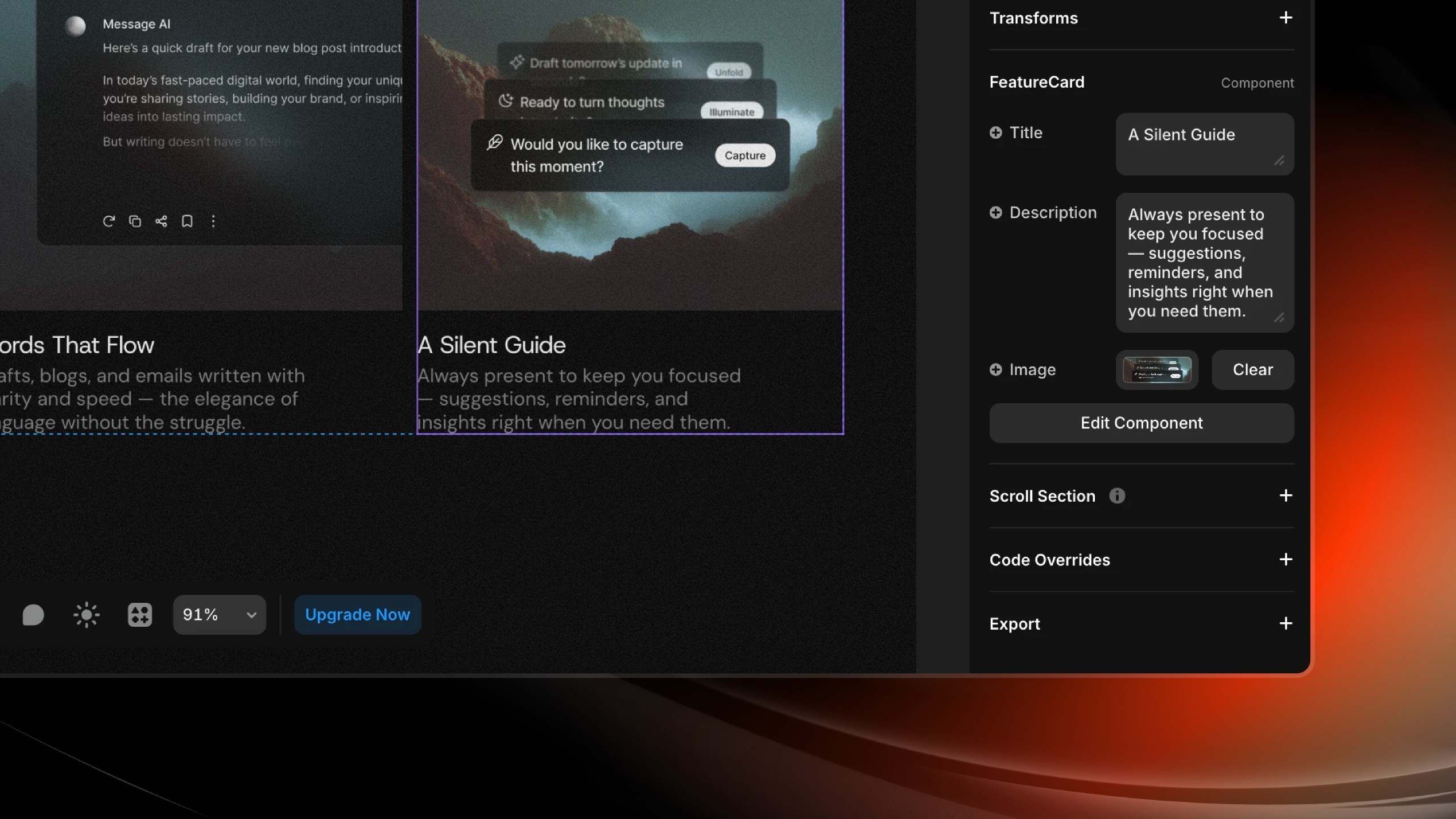
Editing Text
Select and modify:
Click any text element on the canvas
Double-click to enter edit mode
Type your new content
Press
Escor click outside the page to exit edit mode

Text properties (Right Panel):
Font: Change typeface
Size: Adjust font size
Weight: Set bold, regular, light
Color: Modify text color
Alignment: Left, center, right, justify
💡 Use text styles: Your template uses predefined text styles for consistency. Modify a style in the Text panel to update all instances throughout the site.

Replacing Images
Select the image
Find the Image section (Right sidebar)
Find the
FillpropertyClick on the Image
Click again on "Choose image" while hovering the image
Upload or select from your library

Image settings:
Fit: Fill, Fit, or Stretch
Position: Adjust focal point by dragging
Alt text: Add for accessibility and SEO
Optimization tips:
Use WebP or JPG format
Keep files under 500KB when possible
Dimensions: 2x the display size for retina screens
Adjusting Colors
Your template uses a color system with defined variables for consistency.
Quick color changes:
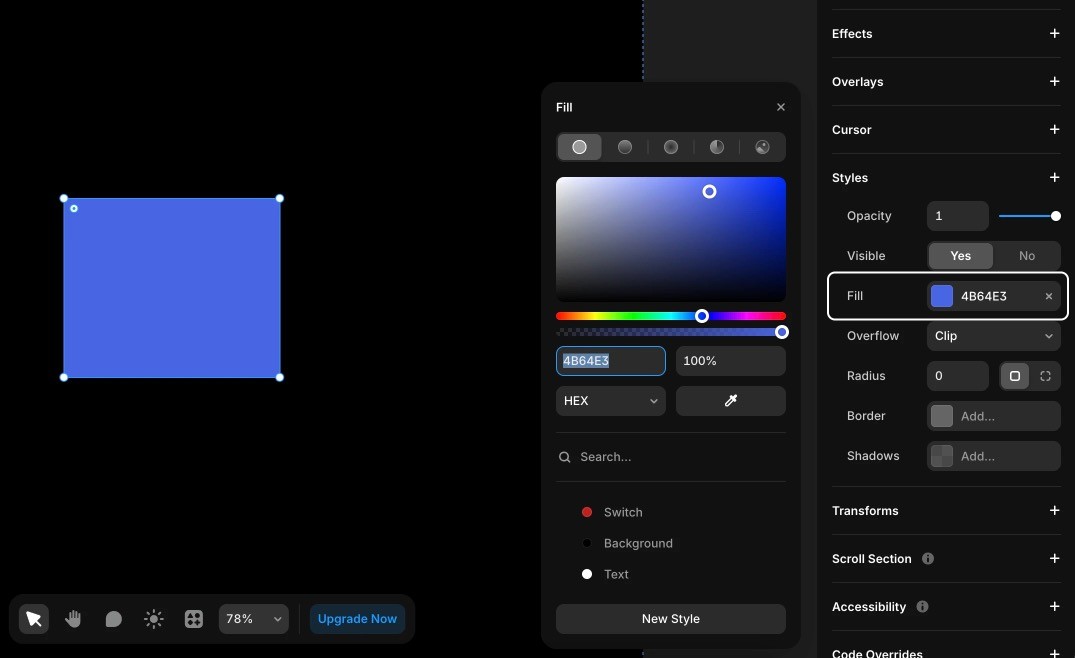
Select any element
Open the Fill panel (Right sidebar)
Click the color swatch
Choose a new color or enter a hex code
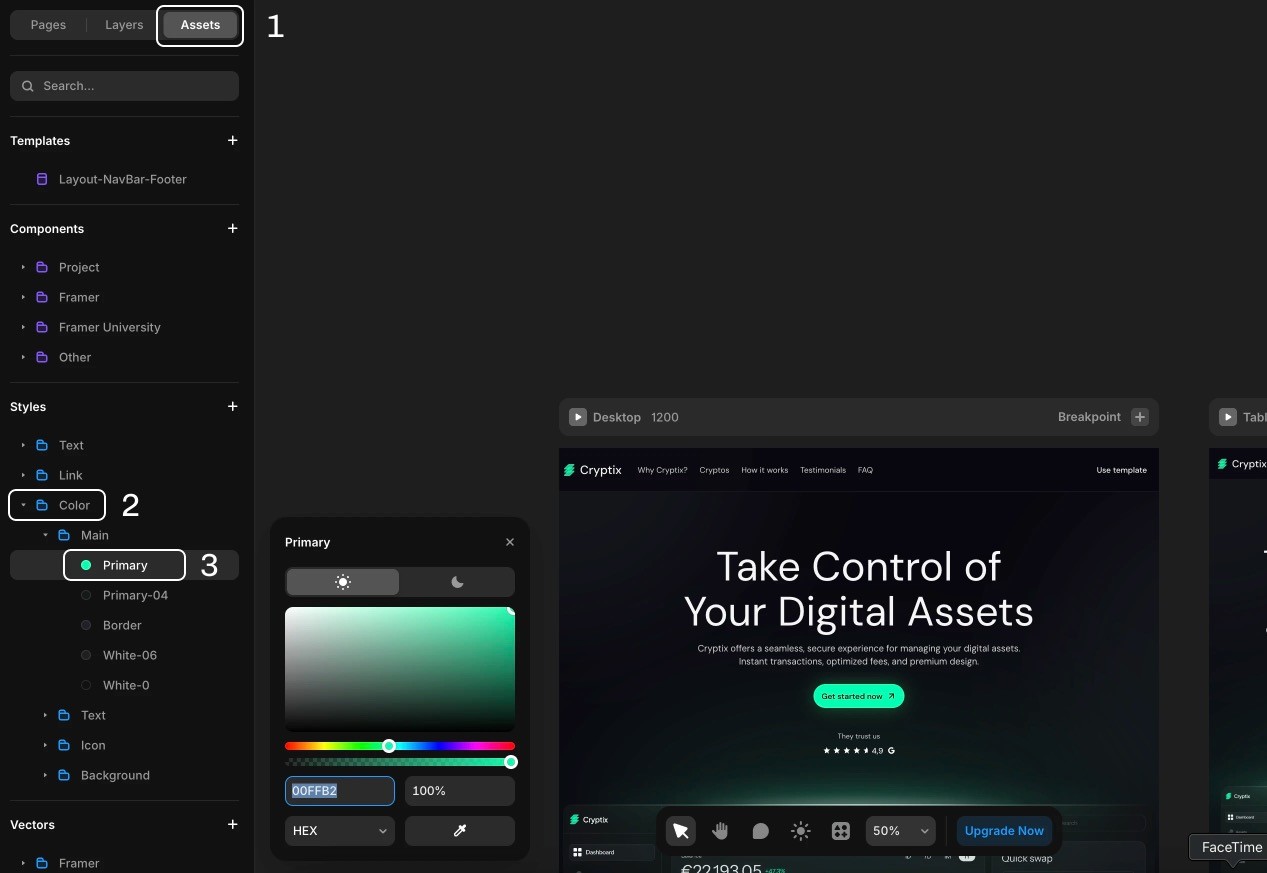
Color variables (for brand consistency):
Open the Color Variables panel (Left sidebar, find Styles and Colors folder)
Your template includes primary, secondary, backgroundsn colors
Modify a variable to update all instances site-wide
Color best practices:
Maintain sufficient contrast (4.5:1 minimum for text)
Test color changes in both light and dark sections (if any)
Preview on mobile to verify readability
Content Checklist
Before moving to the next module, update:
All placeholder text replaced with your content
Company/personal name updated throughout
Hero section text customized
Call-to-action buttons reflect your offers
All images replaced with your assets
Alt text added to images
Brand colors applied via color variables
Content previewed on desktop and mobile
Common Issues
Text overflowing containers:
Reduce font size
Shorten copy
Adjust container max width (right panel under
max width)
Images appear stretched:
Change Fit setting to "Fill" or "Fit"
Adjust focal point by dragging image
Colors look different on mobile:
Verify contrast ratios