Publishing Your Site
5-6 min
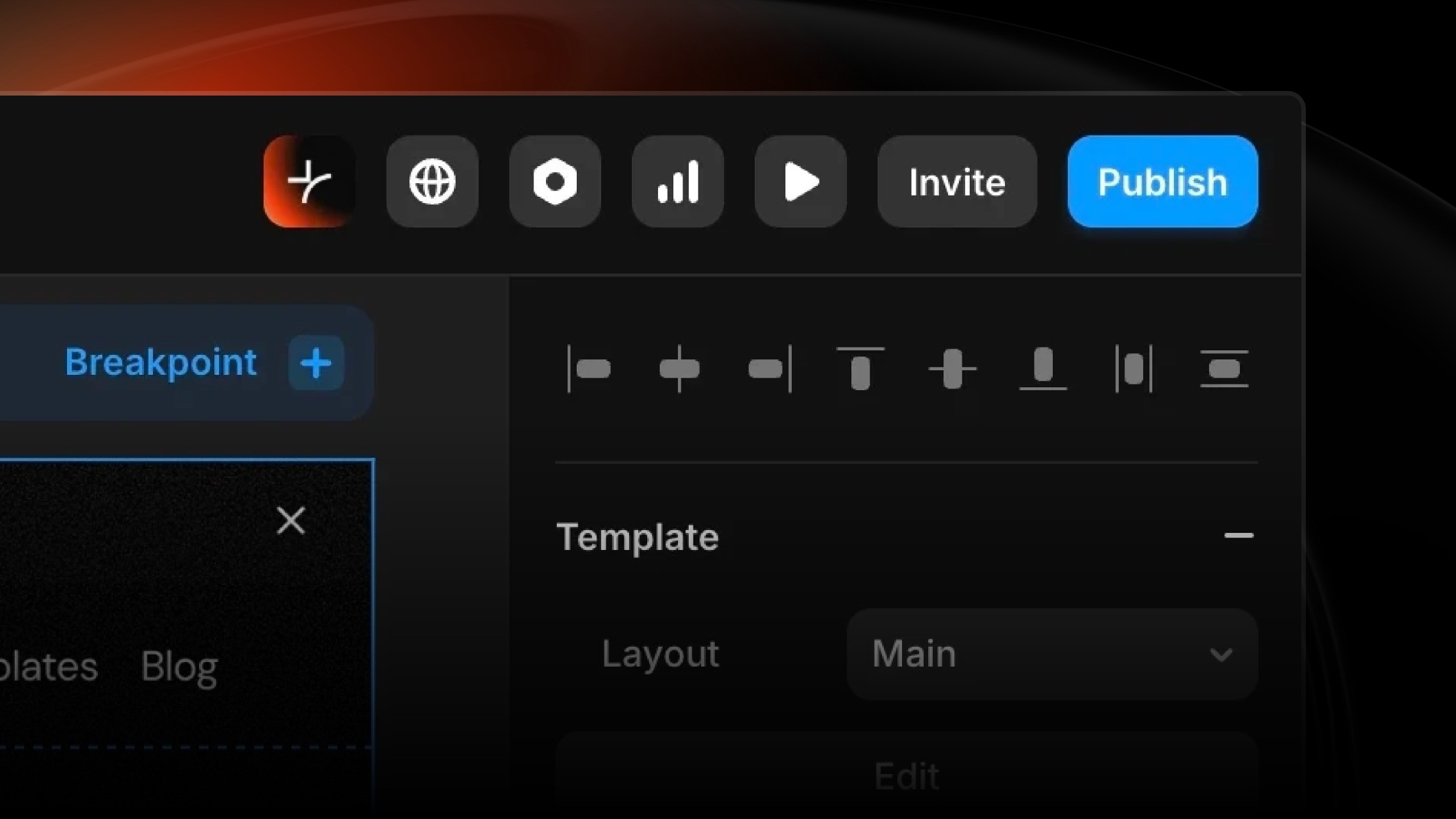
Site Settings
Access site settings via the gear icon (top right of editor).
General Settings:
Site Name: Your website title (appears in browser tabs)
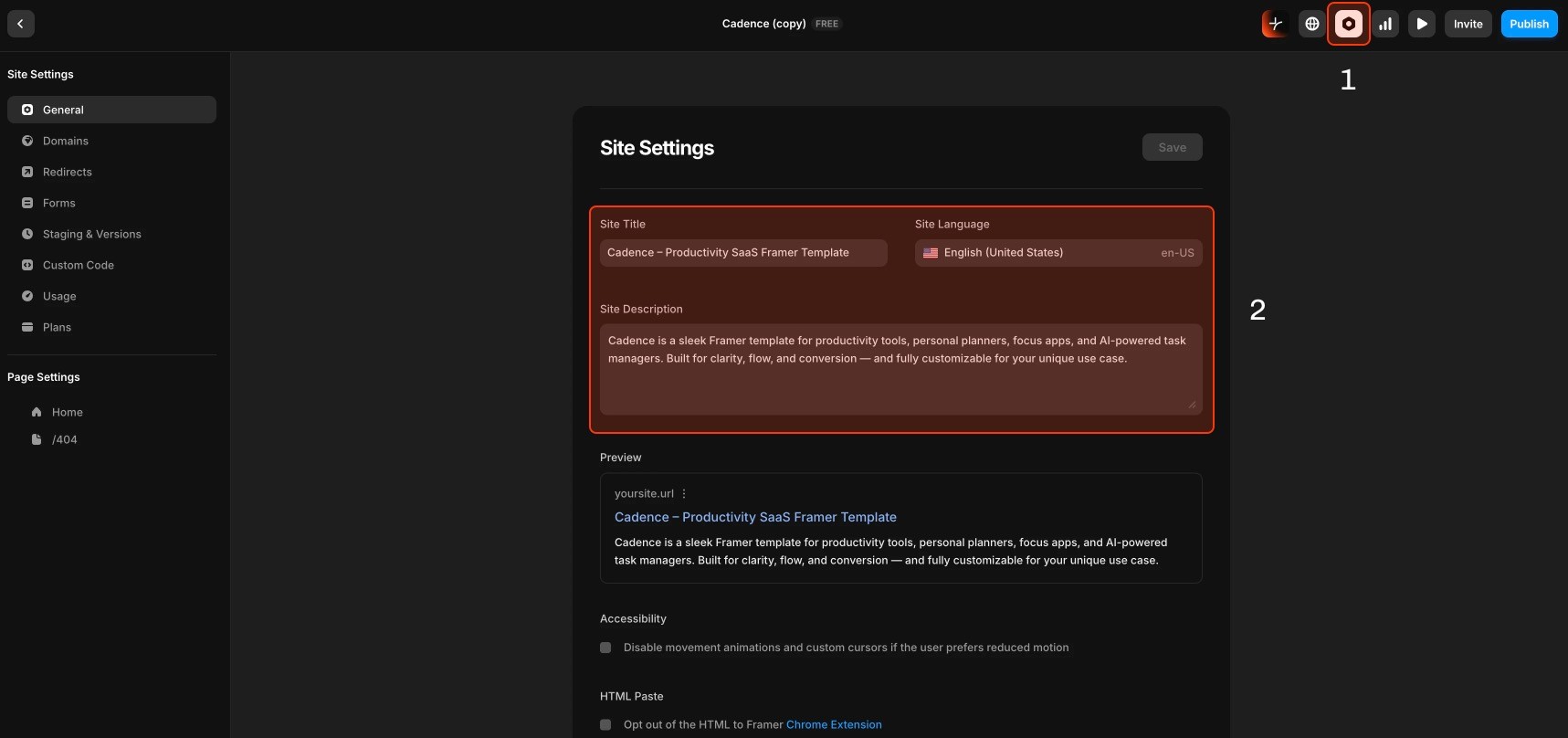
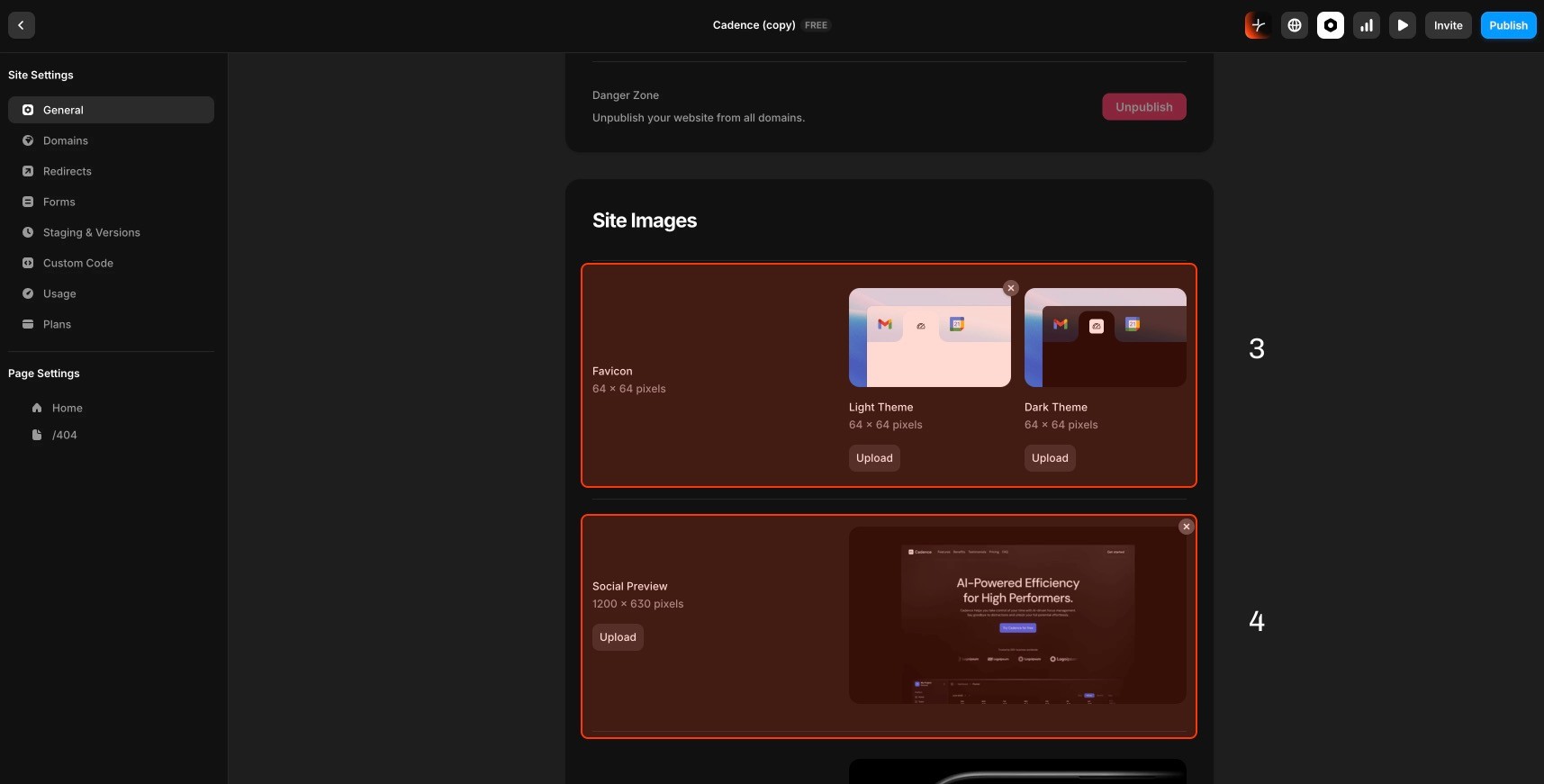
Favicon: Upload a 64x64px icon (displays in browser tabs)
Use PNG, SVG or ICO format
Simple, recognizable design
Test at small sizes (16x16px)
Social Share Image: 1200x630px image for social media previews
Appears when site is shared on Twitter, LinkedIn, Facebook
Include logo, headline, or key visual
SEO Configuration
Homepage SEO (Settings → SEO):
Title Tag: 50-60 characters
Format: "Your Service | Company Name"
Include primary keyword
Appears in Google search results
Meta Description: 150-160 characters
Compelling summary of your site
Include call-to-action
Influences click-through rate
💡 Optional: For the home page, you may leave these fields empty to inherit the general settings.
Per-Page SEO:
Select any page in Pages panel
Click page settings (gear icon)
Enter unique title and description for that page
SEO Best Practices:
Unique titles for every page
Include target keywords naturally
Write for humans, not just search engines
Avoid keyword stuffing
Publishing Process
Ready to publish:
Click Publish button (top right)
Wait a few seconds for deployment
Site will be published on a default domain like common-surprise-12345.framer.app
Post-publish:
Click on the URL to see live version
Test all pages and links
Verify mobile experience
Check form submissions work
Making updates after publishing:
Edit in Framer editor
Click Publish button (top right)
Then click Update
Changes go live in few seconds
No downtime during updates
Domain Connection
Option 1: Free Framer subdomain
Format:
yoursite.framer.websiteFree, instant setup
Good for testing or temporary sites
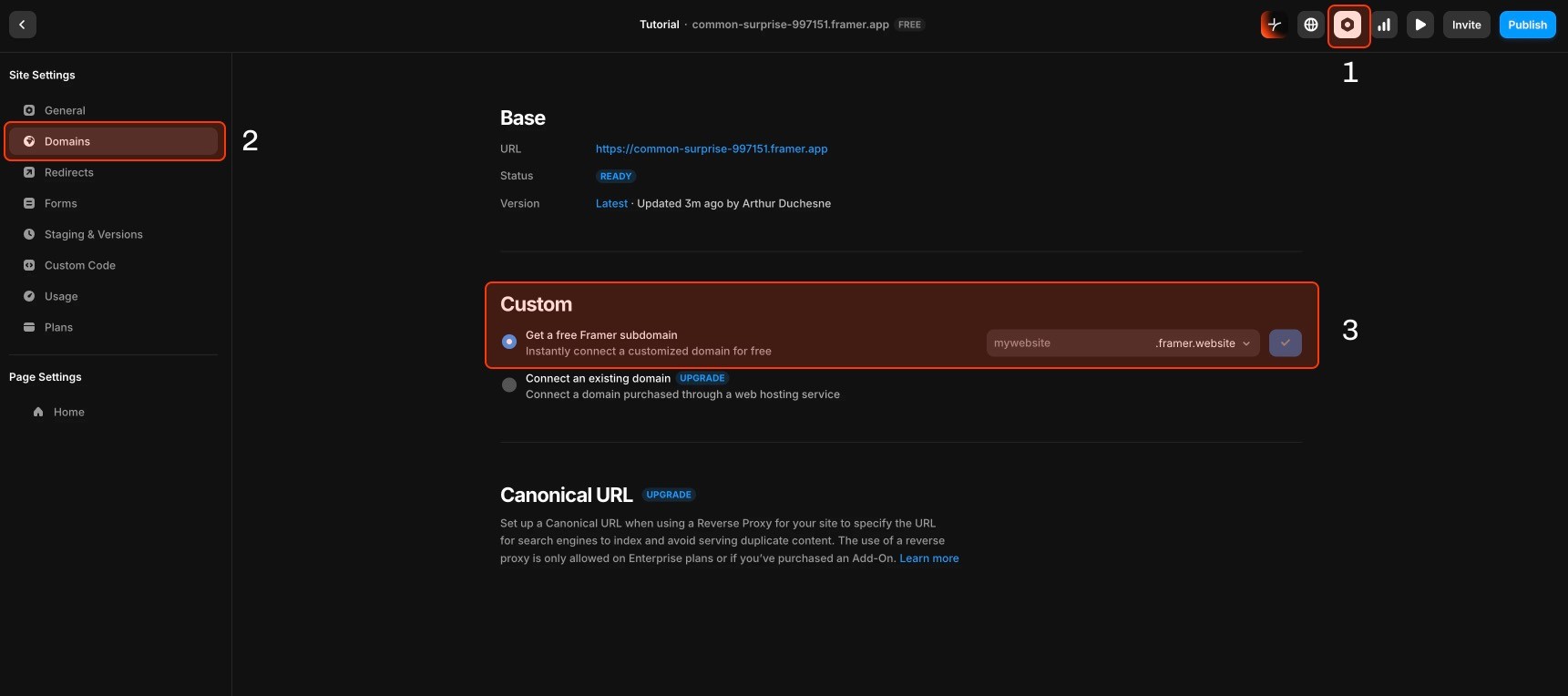
Option 2: Custom domain (recommended for professional sites)
If you own a domain:
⚠️ You'll need to purchase a plan to add a custom domain
Go to Settings → Domain
Click "Add Custom Domain"
Enter your domain (e.g.,
yoursite.com)Follow DNS configuration instructions
Update DNS records at your registrar
Wait 24-48 hours for propagation
If you need a domain:
Purchase from Scaleway, Namecheap, GoDaddy, or Cloudflare
Follow custom domain steps above
Cost: $10-15/year for most domains
DNS Records needed:
A record pointing to Framer's IP
CNAME record for www subdomain
Framer provides exact values in setup flow
Privacy & Indexing
Password Protection (optional):
Settings → Privacy → Enable password
Use for client previews or staging sites
Share password with specific users
Search Engine Indexing:
Settings → SEO → "Allow search engines to index site"
Enable for public sites (default)
Disable for private/client sites